
Android App Installer
Install the local1081 App
Follow these quick steps to install the app on your Android device.
Download the app
Tap the button below to download the local1081 app file. If Chrome asks for confirmation, tap OK or Download anyway.
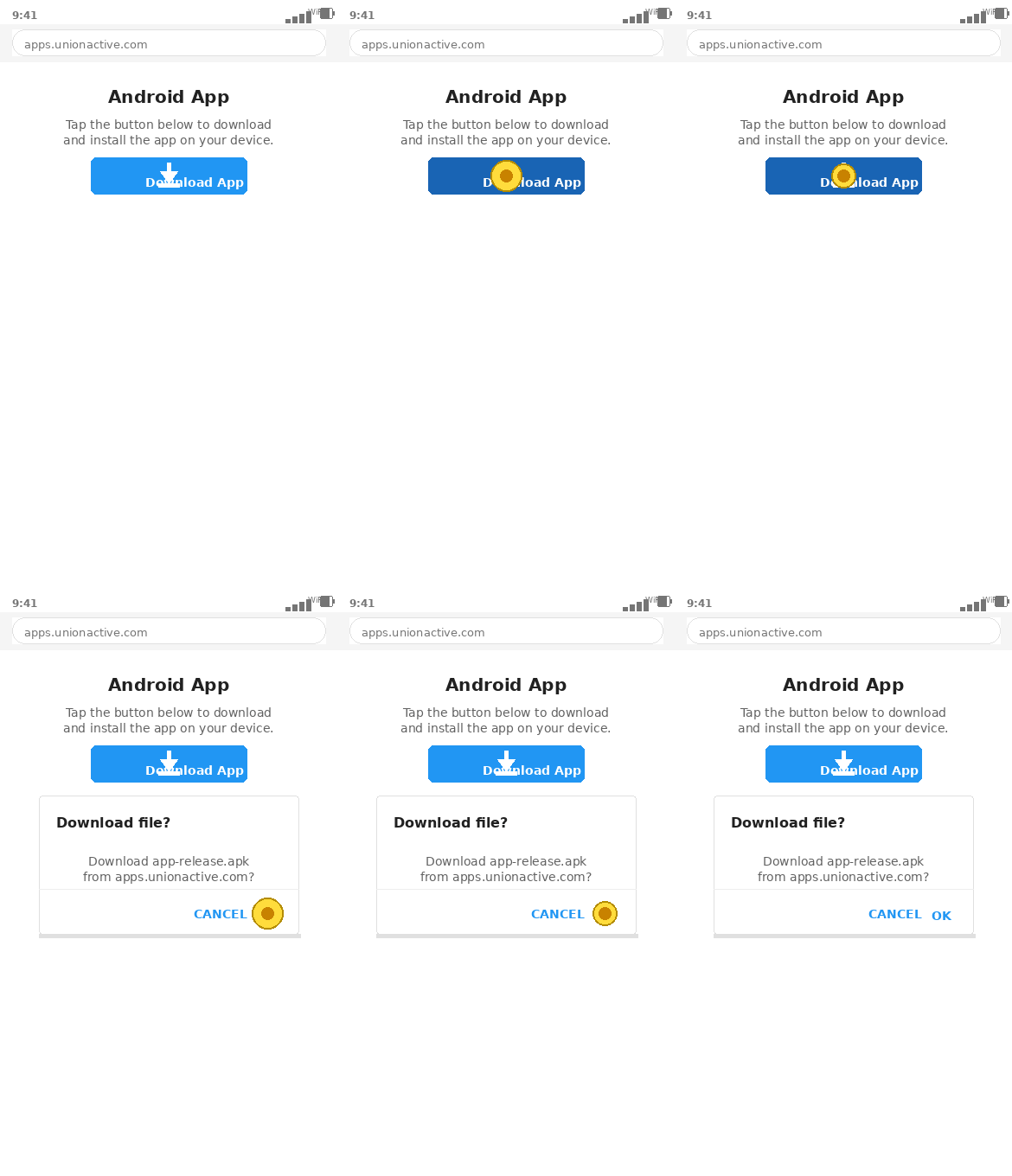 Download local1081
The file may take a moment to start downloading. That is normal.
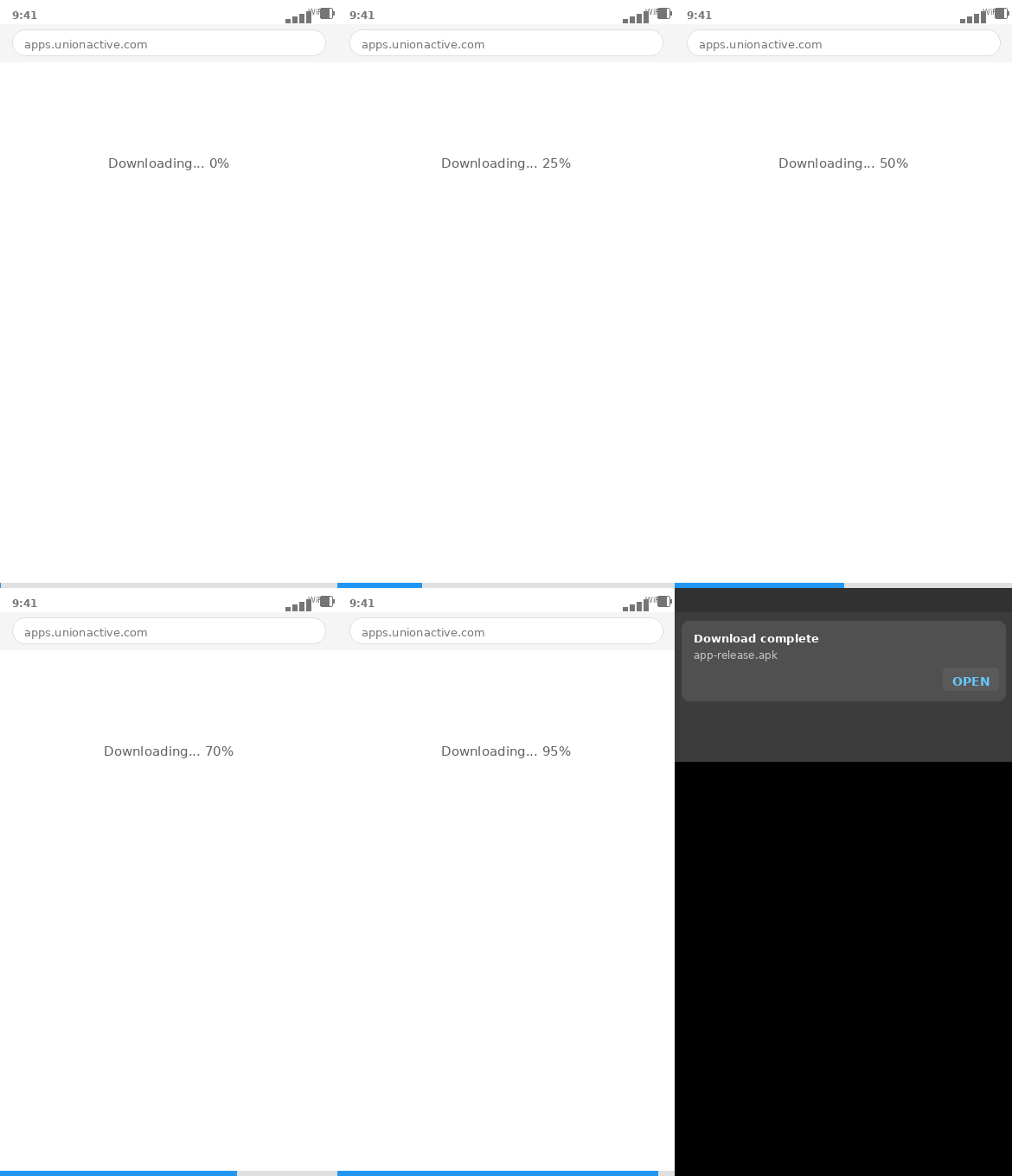
Open the downloaded file
When the download finishes, tap Open in the notification that appears at the bottom of the screen.
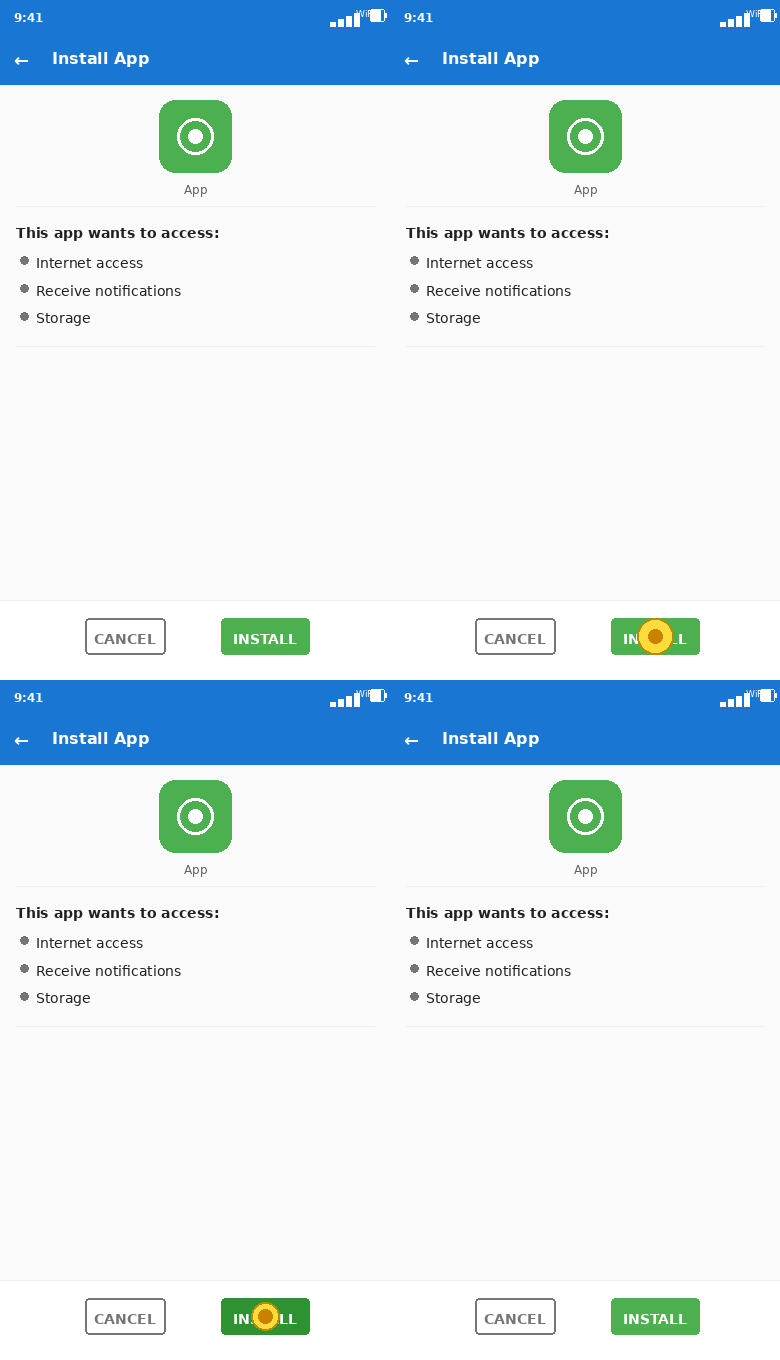
Install the app
Android will show an installation screen. Tap Install in the bottom-right corner to begin.
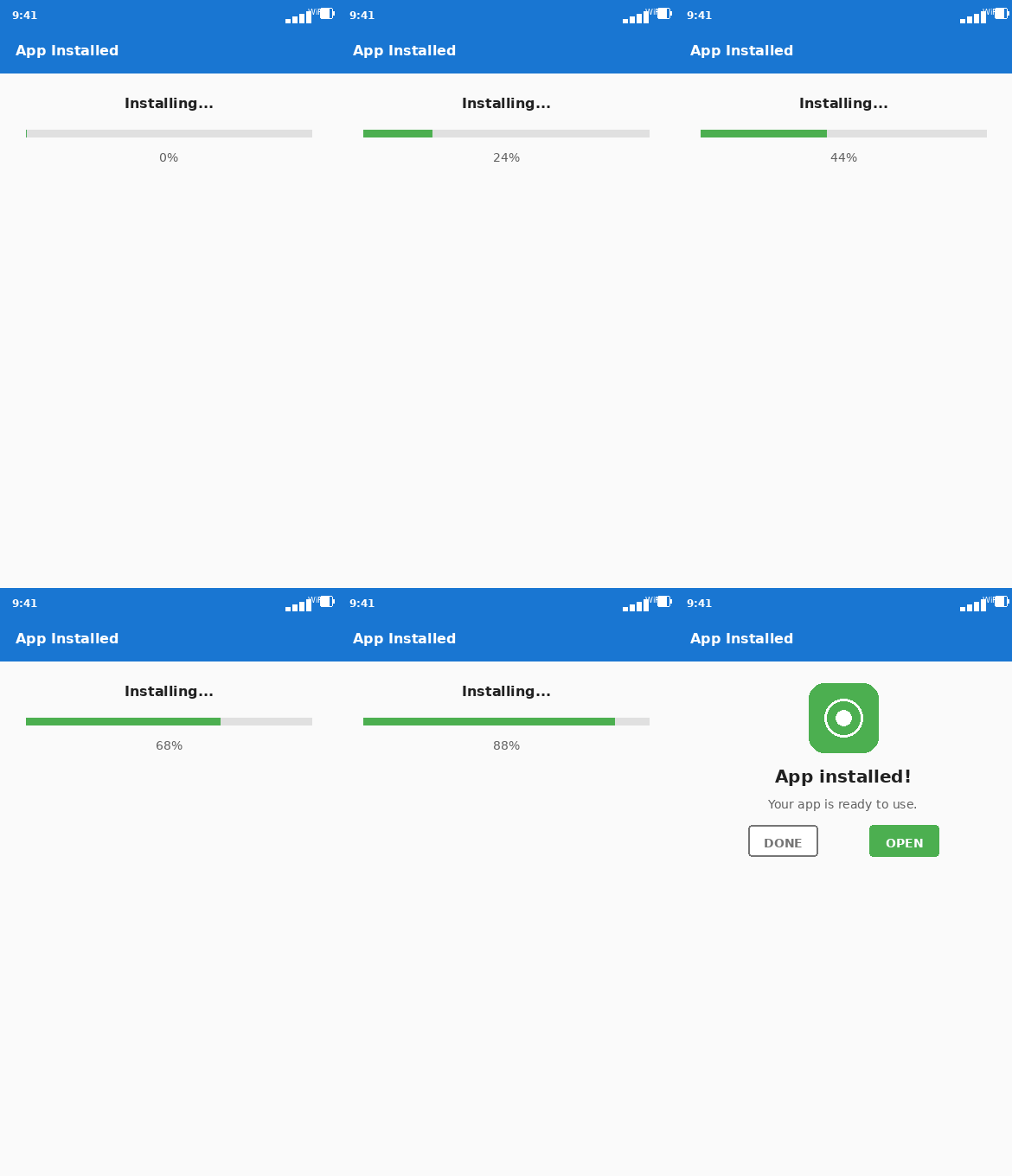
Open the app
Once installation is complete, tap Open to launch local1081. The app icon will also appear on your home screen.
You're all set
The local1081 app is installed and ready to use.
Still having trouble?
I can't find the downloaded file
Swipe down from the top of your screen to open the notification shade. Look for the local1081 download under your notifications and tap it to open the file.
Android blocked the installation
Go to Settings → Apps → Special app access → Install unknown apps, find your browser (e.g. Chrome), and enable Allow from this source. Then return and try installing again.
The app installed but won't open
Try restarting your device, then tap the local1081 icon from your home screen or app drawer.